Know exactly where your school year lands.
Put in your own subjects and lessons, mark the days you take off, and Teaching Pace lays your whole year out on a calendar — stepping over weekends, holidays, and co-op days, and telling you the day each subject finishes.
Built by a homeschooling parent, for homeschooling families. One price, no subscription, and your plan never leaves your computer.
- One time, no subscription
- 7-day refund
- Works without internet
- Windows PC or Mac, in Chrome or Edge
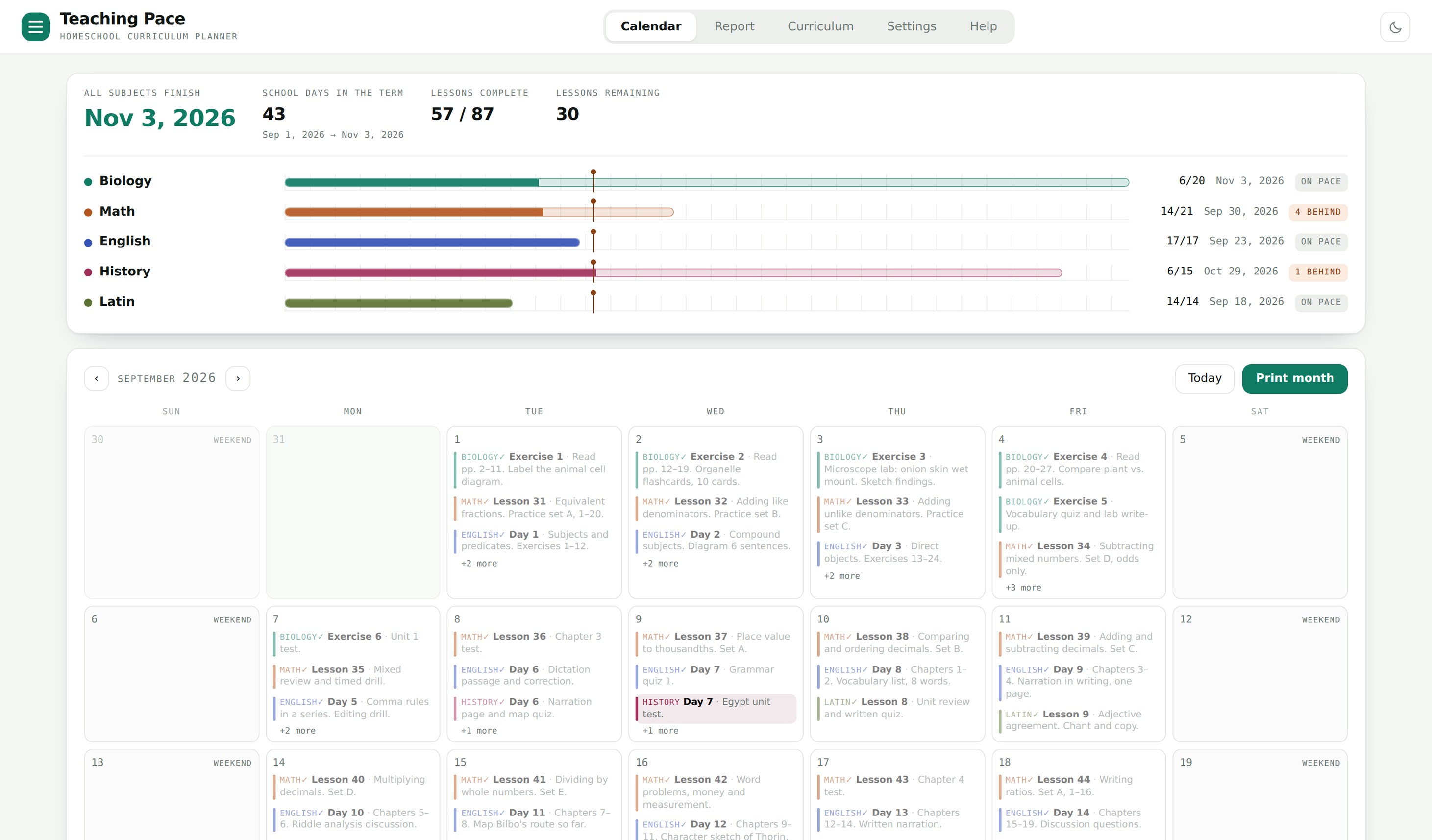
Any curriculum
You type in your own subjects and lessons — boxed curriculum, living books, or your own plan.
Days off that stick
Weekends, co-op days, holidays, and breaks. Lessons step over them.
Real life happens
Move one subject without disturbing the others; finish dates update as you go.
Print it
A month for the wall, or a one-page summary of the whole term.
One child or several? Teaching Pace fits either way. It's one plan for your home, and you add each child's subjects however you like, such as “Emma – Math” and “Jack – Reading”.
What it does
Your curriculum, your calendar
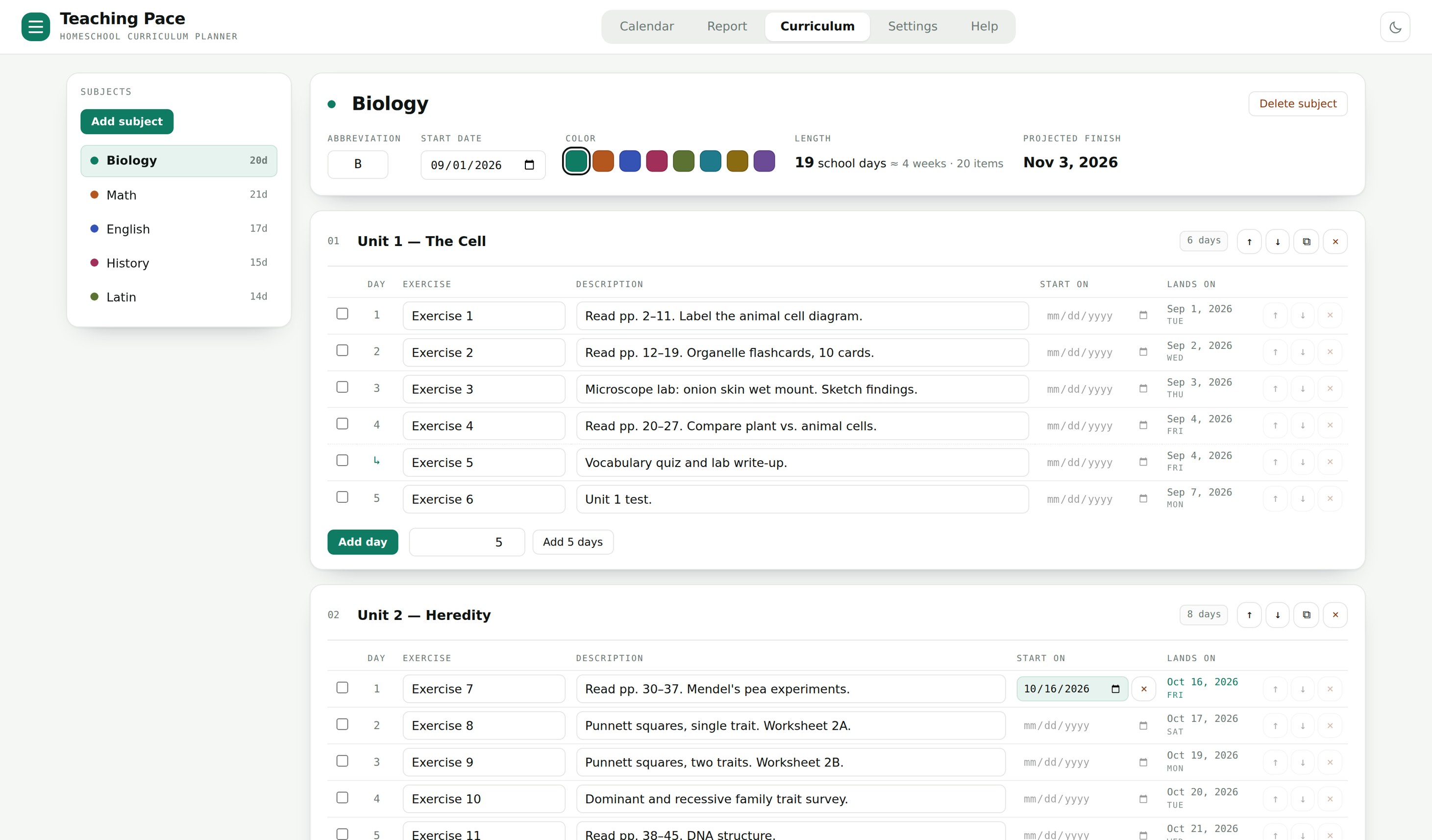
Lay out a subject once
Add a subject, give it a start date, and enter your lessons in order. Each one takes a school day, and you can write out what it covers.
Need a unit to begin on a particular date? Set it, and everything after follows. Two short lessons you want to do together? Check them both and combine them onto one day.
- 1Two lessons combined onto one day.
- 2The day each lesson lands on.
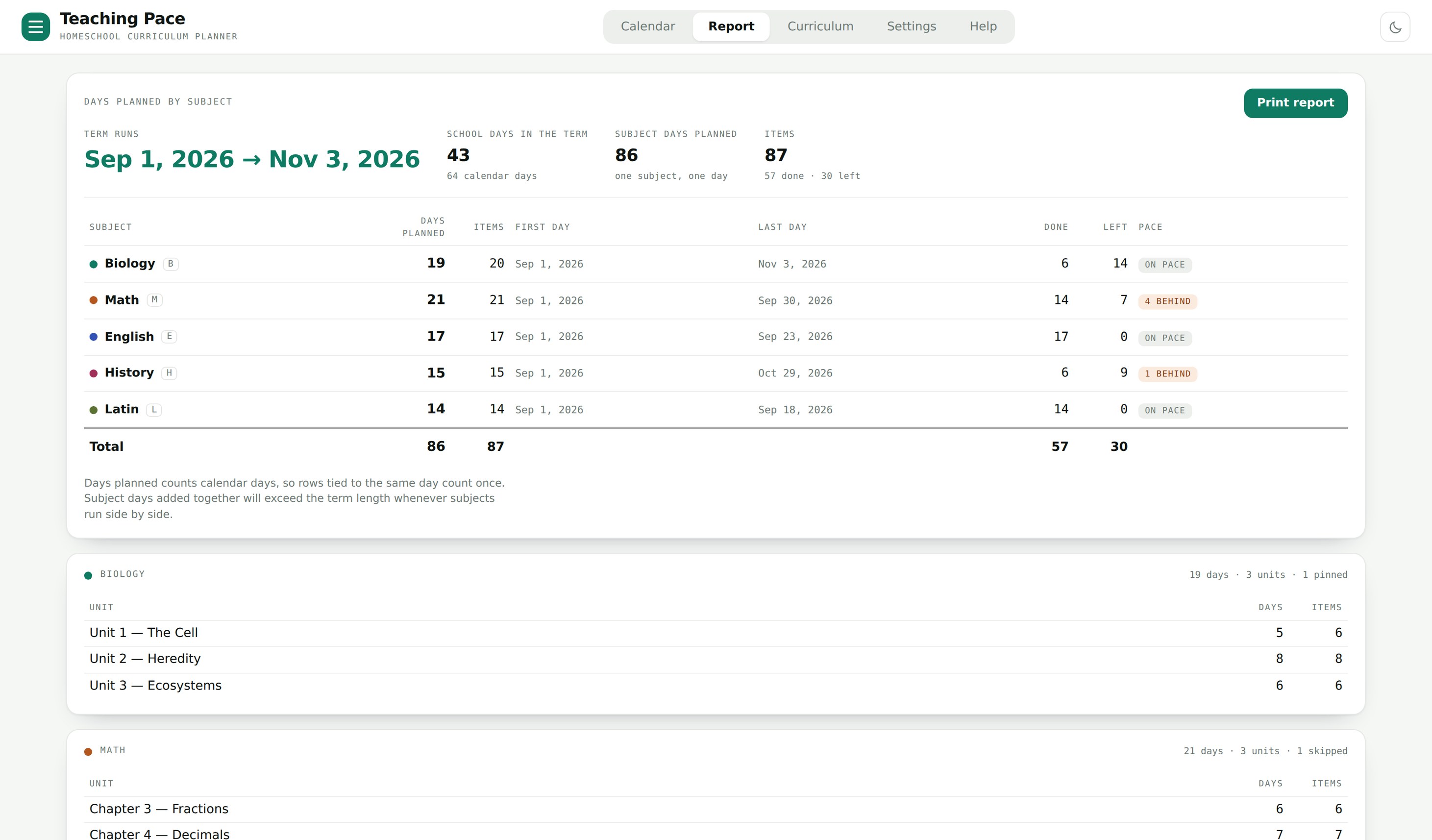
See the whole year at a glance
Days planned for each subject, the first and last day, how much is finished, and what is running behind.
Print a month for the wall, or a one-page summary of the whole term.
- 1What is running behind.
- 2Print a one-page summary.
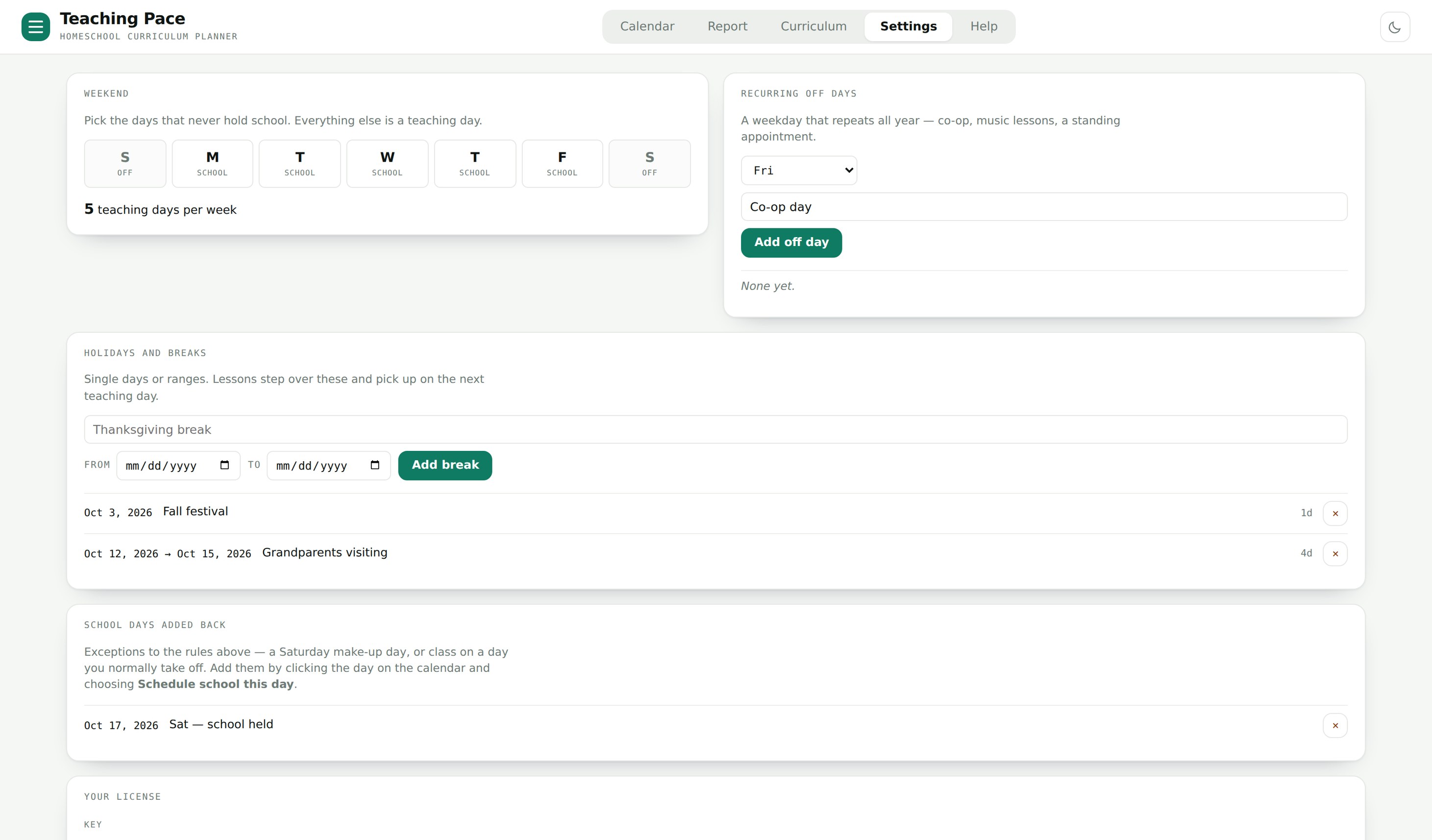
Set your year up once
Mark the days you never hold school, add a standing co-op or enrichment day, and put in your holidays and breaks — single days or whole weeks.
Held school on a day you had marked off? Add it back and everything shifts to suit.
- 1The days you never hold school.
- 2Holidays and breaks, single days or ranges.
- Yours to keep, this school year and the ones after it
- For a Windows PC or Mac, in Chrome or Edge — not a phone or tablet app
- Can transfer to a new computer
- One click to put it on your desktop, and it works without internet
- Your plan is saved on your own computer, never on a server
- Print a month for the wall or a summary for your records
- Works for one child or several: add each child's subjects to the same plan
- Windows PC or Mac
- Chrome or Edge
- Not a phone or tablet app
- Safari not supported
A full-size screen is what makes a whole year readable at once, and Chrome and Edge are what let Teaching Pace save your plan straight to a folder you choose.
Buy Teaching PaceBy buying Teaching Pace you agree to the terms of sale, which include that it is sold as-is with no warranty and that you are responsible for your own backups and for meeting your state's homeschooling requirements.
Questions
Before you buy
- Do I have to install anything?
-
No. Teaching Pace opens in your browser and works there. But putting it on your desktop takes
one click and makes it feel like a normal program — its own icon, its own window, no tabs.
In Edge: look for a small monitor icon with a down arrow at the right end of the address bar and click it, then Install. If you do not see it, use the three-dot menu at the top right → Apps → Install this site as an app.
In Chrome: look for the same monitor icon at the right end of the address bar. If it is not there, use the three-dot menu → Cast, save, and share → Install page as app.
Either way it appears in your Start menu, and you can right-click it there to pin it to the taskbar. After the first visit it works with no internet. - What do I need to run it?
- A Windows PC or a Mac, using Chrome or Edge. Teaching Pace is built for a full-size screen — you are laying out a whole school year across a calendar, and that needs room. Chrome and Edge are also the only browsers that let a web page save straight to a folder you pick, which is how your plan is kept safe outside the browser. It is not a phone or tablet app. Please avoid Safari: it erases a website's saved data if the site is not opened for 7 days, and that would include your plan. The same is true of every browser on an iPhone or iPad. Firefox works, but without the save-to-a-folder option.
- Where is my information stored?
- On your computer, in a folder you choose — your Desktop or Documents works well. Nothing you type is sent anywhere, there is no account, no third-party cloud, and no one else can see your plan. That also means your backups are yours to look after, so export a copy now and then.
- Can I plan for more than one child?
- Yes. Teaching Pace is one plan for your whole home, and you add each child's subjects to it however you like, for example Emma – Math and Jack – Reading. Each subject gets its own lessons, pace, and finish date, and you see everyone's work together on one calendar.
- Does it work with my curriculum?
- Yes, because you type in your own. There is no list to pick from and nothing to match against, so a boxed curriculum, a reading list, or a plan you wrote yourself all work the same way.
- How many computers?
- Your purchase covers one computer at a time. If you get a new computer, or need to move Teaching Pace to a different one, you can — you have a small number of transfers, which is plenty for normal use. If you run out, write to teachingpace@outlook.com and we will free one up. For a co-op or several families, please ask about a group license.
- Is this a subscription?
- No. You pay once and it is yours, including future school years.
- Can I try it first?
- There is no trial, but there is a 7-day, no-questions refund. If Teaching Pace is not right for your family, reply to your receipt email or write to teachingpace@outlook.com within 7 days of buying and you get your money back.